

Spaces
Rename or delete a space
Change a space's name, or remove a space and everything in it.
Rename a space
-
Click Documents in the left sidebar.
-
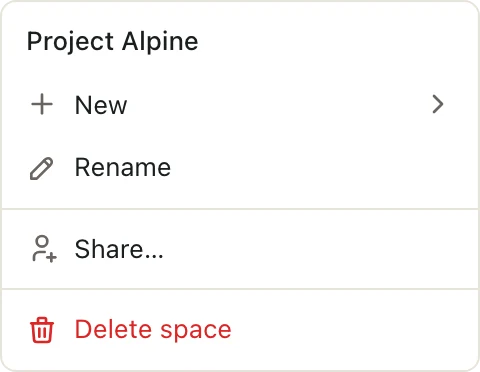
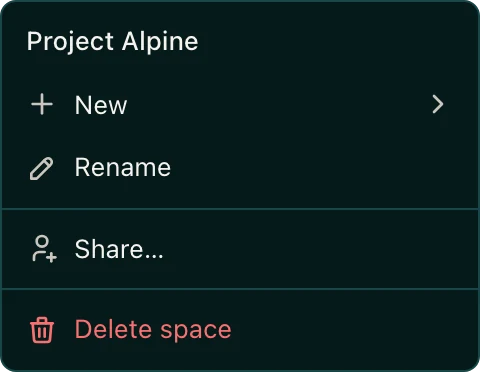
Right-click the space and choose Rename.
-
Type the new name and press Enter.
To keep the old name, press Esc instead.
Delete a space
- Click Documents in the left sidebar.
- Right-click the space and choose Delete space.
- Pitchcrow asks you to confirm and tells you how many documents are inside. Click Delete space.
Deleting a space removes everything in it: decks, sheets, uploaded files, folders, and the comments and Pitchcrow chats on those decks and sheets.
You can't undo this
A deleted space is gone for good, along with everything inside it. To keep a deck, sheet, or file, move it to another space first.
Good to know
- Only space Admins can rename or delete an invited-only space. See Space roles.
- Only organization admins can rename or delete a space for Everyone at your firm.
- The Templates space can't be deleted. See What is the Templates space?