

Sheets
Freeze rows or columns
Keep header rows or label columns in view while you scroll through a big sheet.
Freezing pins rows to the top of the tab, or columns to the left side. They stay put while the rest of the grid scrolls. It's handy for a row of years across the top, or a column of line items down the left.
-
Right-click a cell, a row number, or a column letter.
-
Point at Freeze and choose:
- Freeze first row or Freeze first column to pin just the first one.
- Freeze to row n to pin every row down to that one.
- Freeze to column n to pin every column up to that one.
- Freeze to active cell to pin the rows above and the columns to the left of the cell you clicked.
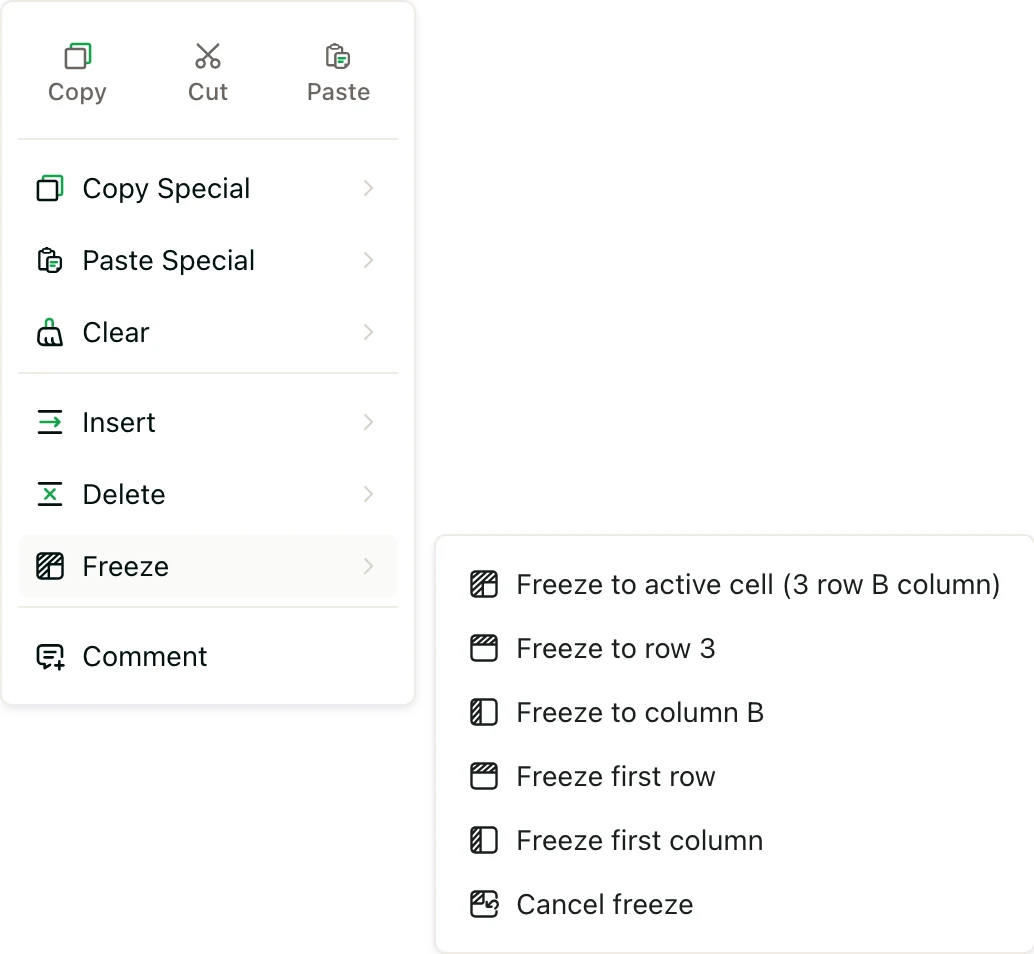
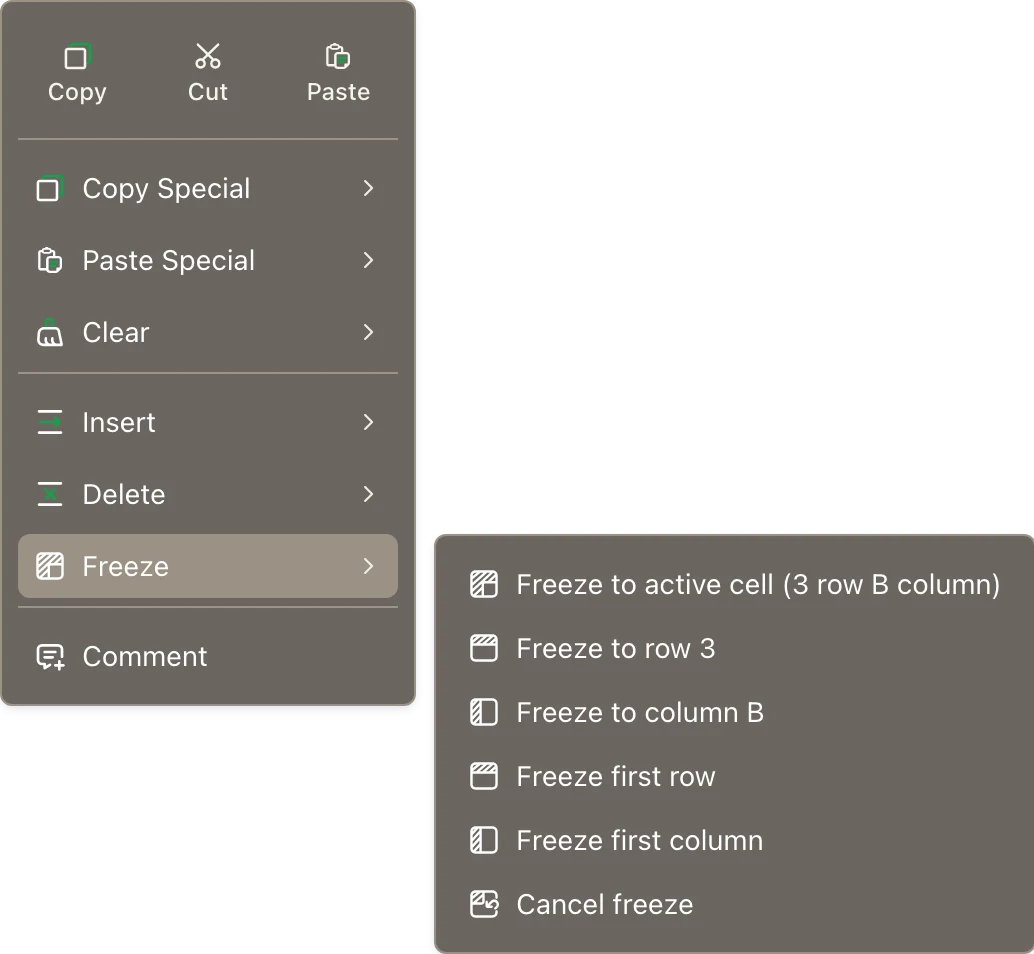
Which choices show depends on what you right-clicked. Here n is the row or column just before the one you clicked.
To unpin everything, right-click and choose Freeze → Cancel freeze.
Good to know
- Each tab has its own frozen rows and columns.
- Freezing is saved with the sheet, so everyone who opens it sees the same frozen rows and columns.
- You need to be an Admin or Editor of the space to change a sheet. See Space roles.