

Find and replace in a sheet
Find a word, number, or formula in a sheet, and change one cell or every match at once.
-
Open the sheet.
-
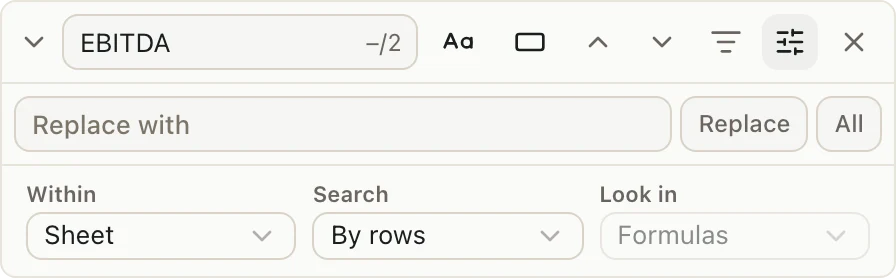
Press CommandFCtrlF to find, or CommandShiftHCtrlH to find and replace. A find box opens in the top right of the grid.
-
Type what you're looking for in Find. Matching cells get an outline. The box shows how many cells match, like "2/7".
-
Press Enter to jump to the next match, or ShiftEnterShiftEnter to go back. After the last match, it starts over at the first. F3 and ShiftF3ShiftF3 do the same.
-
To replace, type the new text in Replace with, then click:
- Replace to change the cell you're on. If you're not on a match yet, the first click only jumps to the next one. Click again to change it.
- All to change every match.
-
Press Esc to close the box.
Opened Find but want to replace? Click the small arrow at the left of the find box to show Replace with.
See every match in a list
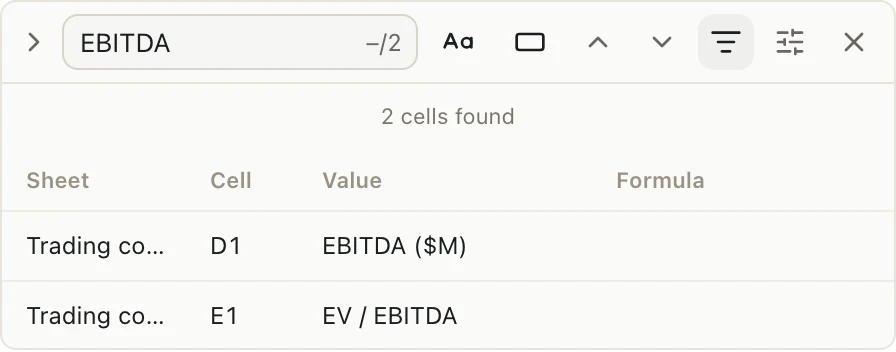
Click Find all in the find box. A list shows each matching cell with its tab, cell, value, and formula. Click a row to jump to that cell.
Change what counts as a match
Two buttons next to the Find box:
- Match case finds only the same capital and small letters. "EBITDA" won't match "Ebitda".
- Match entire cell contents finds only cells that hold exactly what you typed, and nothing else. "Revenue" won't match "Total revenue".
For more choices, click Search options:
| Option | Choices |
|---|---|
| Within | Sheet looks only in the tab you're on. Workbook looks in every tab and moves from tab to tab as you go. |
| Search | By rows goes across each row, then down. By columns goes down each column, then across. |
| Look in | Formulas looks at what's typed in the cell, like =B4*1.05. Values looks at what the cell shows, like $1,250.00. Comments looks at the comments on cells. |
You can also use wildcards in Find:
*stands for any run of characters.Rev*2025finds "Revenue 2025" and "Rev. FY2025".?stands for one character.Q? revenuefinds "Q1 revenue" through "Q4 revenue".- To find a real
*or?, put~before it, like~*.
What Replace changes
- Replace works on what's typed in the cell. So while Replace with is showing, Look in stays on Formulas.
- Formulas change too. Replace
1.05with1.07, and=B4*1.05becomes=B4*1.07. - Numbers stay numbers. Replace 2025 with 2026 in a number cell, and totals still add it up. Dates stay dates.
- Broken formulas are left alone. If a change would stop a formula from working, Pitchcrow skips that cell, and the find box says so.
- The find box tells you what happened. After All, it says something like "Replaced 5 cells across 2 sheets." If some changes couldn't be saved, it says how many.
To take back a whole All at once, press CommandZCtrlZ.
Good to know
- Replace skips any tab a teammate is editing, or that Pitchcrow is working on right now. The find box tells you how many cells it skipped.
- Hidden tabs are left out when you search the whole workbook.
- Anyone who can open the sheet can use Find. Only Admins and Editors of the space can replace. See Space roles.
- To find text in a deck, see Find and replace text.