

Account
Change your name or password
Update the name your teammates see, or set a new password.
Change your name
-
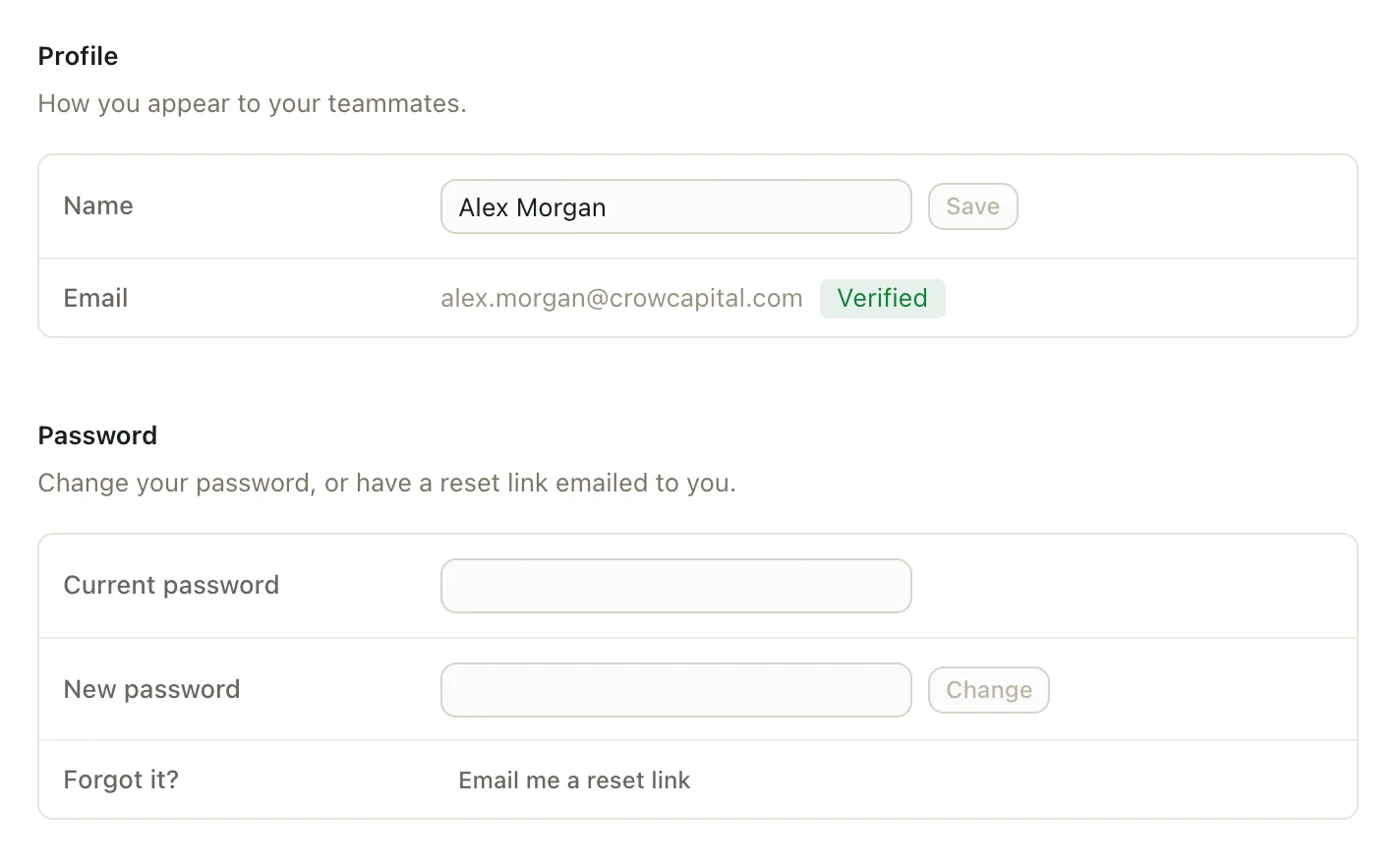
Click your name at the bottom of the left sidebar, then Settings. Your Account page opens.
-
Under Profile, type your new name in Name.
-
Click Save.
Change your password
- Click your name at the bottom of the left sidebar, then Settings.
- Under Password, type your current password in Current password.
- Type a new password in New password. It needs at least 8 characters.
- Click Change.
You stay signed in on this computer. Pitchcrow signs you out everywhere else, like on a second computer, within a few minutes. Sign in there again with your new password.
Good to know
- If you sign in with Google, you don't have a Pitchcrow password to change. You sign in with your Google account instead.