

Decks
Create a deck
Start a new, empty deck in a space and pick its slide size.
-
Click Documents in the left sidebar and open the space.
-
Click New, then Deck.
-
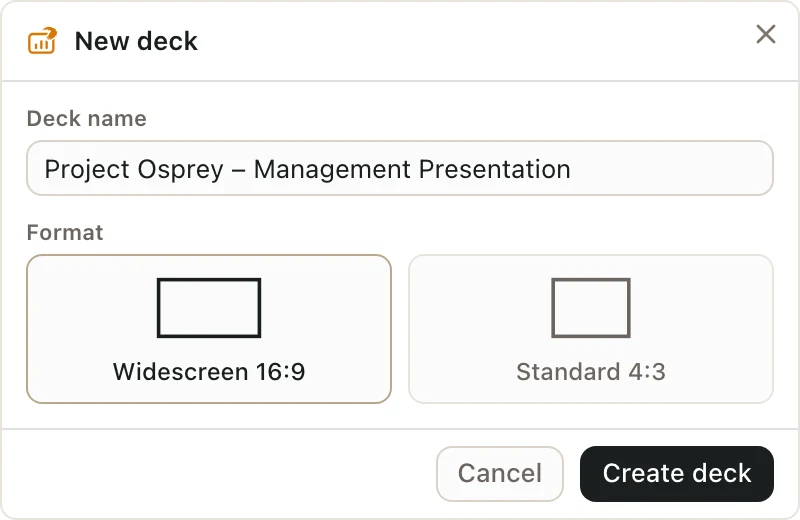
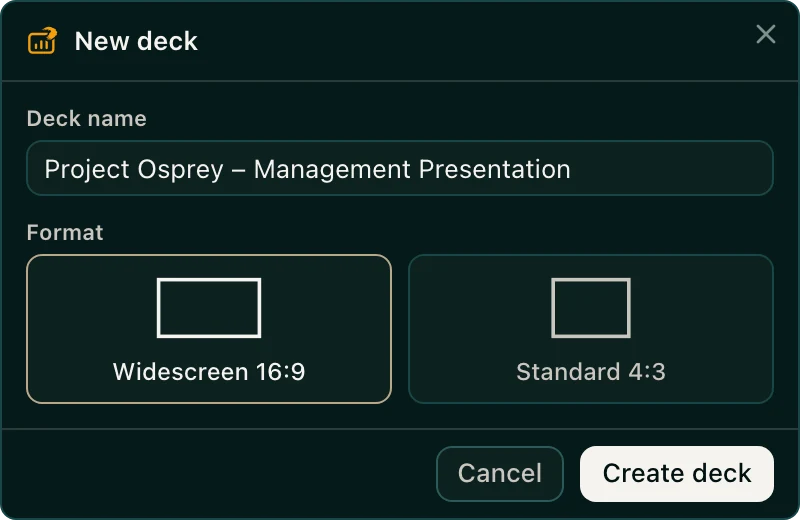
Type a Deck name, like "Project Osprey – Management Presentation".
-
Under Format, choose:
- Widescreen 16:9 for the wide slides most screens use today.
- Standard 4:3 for the older, squarer slide size.
-
Click Create deck.
The new deck opens right away.
You can also right-click a space or a folder in the space list, then choose New → Deck. The deck is saved in that spot.
To rename the deck later, click its name at the top left of the deck, type the new name, and press Enter.
Good to know
- You need to be an Admin or Editor of the space to create a deck. See Space roles.
- Pick the format up front. The deck editor has no setting to change it later.
- Everyone who can open the space can see the new deck.